


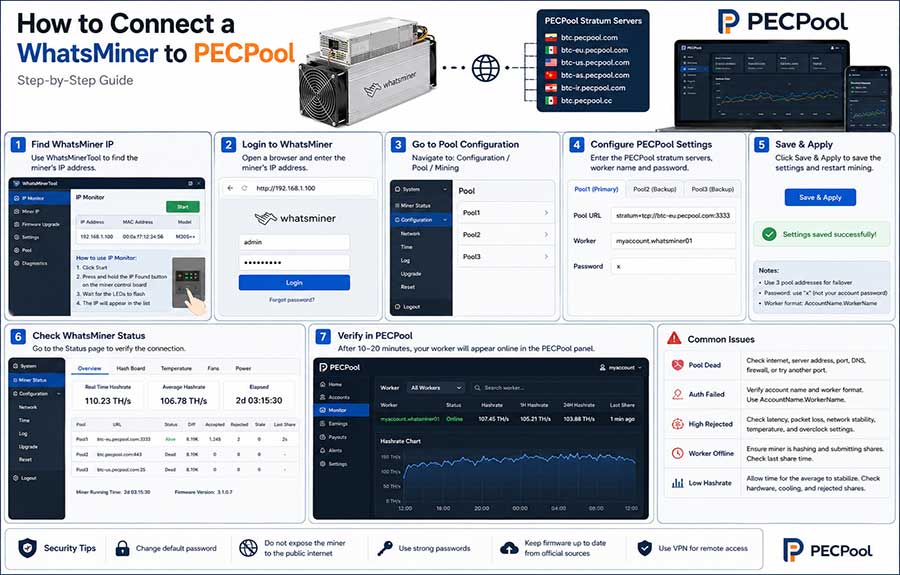
Learn how to connect a MicroBT WhatsMiner to PECPool, find the miner’s IP address, configure three PECPool stratum servers, create a unique worker name, verify accepted shares, and troubleshoot common connection problems.
MicroBT WhatsMiner devices can connect directly to PECPool through their built-in web management interface or the official WhatsMinerTool application.
After entering the PECPool stratum addresses and your account and worker information, the miner will connect to the pool and begin submitting Bitcoin mining shares.
This guide applies to Bitcoin SHA-256 WhatsMiner models. The exact menu names and interface layout may vary depending on the miner model and installed firmware.
Before configuring your WhatsMiner, make sure you have:
WhatsMinerTool is MicroBT’s official management application for discovering miners, viewing operating data, configuring IP addresses, changing mining pools, managing firmware, and performing maintenance operations.
Before turning on the miner, verify that:
Do not operate the miner with incorrect voltage, loose power connections, insufficient cooling, or blocked airflow.
Sign in to one of the official PECPool control panel addresses:
https://cp.pecpool.com
https://cp.pecpool.cc
Open the Accounts section and locate the mining account you want to use.
Your mining account name will be entered in the WhatsMiner’s worker configuration.
The mining account name is not the same as:
Copy the account name exactly as displayed in the panel.
If your PECPool user has multiple mining accounts, verify that you have selected the correct one before configuring the device.
A worker name identifies an individual miner under your PECPool mining account.
Use the following format:
AccountName.WorkerName
Example:
myaccount.whatsminer01
For multiple WhatsMiner devices, assign a different name to every miner:
myaccount.whatsminer01
myaccount.whatsminer02
myaccount.whatsminer03
You may also create worker names based on physical location:
myaccount.rack01m01
myaccount.room2m05
myaccount.siteb03
Use a short and recognizable name without spaces or unnecessary special characters.
A unique worker name makes it easier to monitor:
The worker is normally created automatically in PECPool after the miner begins submitting valid shares. It does not usually need to be created manually before connecting the miner.
Connect the miner’s Ethernet port to your router or network switch.
Then connect the required power cables and turn on the miner.
Wait for the miner’s control system to complete its startup process. This may take several minutes depending on the model, firmware, and cooling type.
The Windows computer used for configuration should be connected to the same local network as the WhatsMiner.
Example network:
192.168.1.1
192.168.1.20
192.168.1.100
Your actual local IP addresses may be different.
This method is suitable for configuring one miner directly.
You need the miner’s local IP address to open its management interface.
The recommended method is using the official WhatsMinerTool.
MicroBT’s current instructions specify using IP Monitor, clicking Start, and holding the miner’s IP Found button until the LEDs flash and the address is detected.
WhatsMinerTool can also scan a specified local IP range.
To define the scanning range:
You may also check the DHCP client list in your router or network management system.
Enter the detected IP address in a web browser.
Example:
http://192.168.1.100
The WhatsMiner login page should appear.
Enter the administrator username and password configured for the device.
Credentials may vary depending on:
After signing in, change any factory-default password when possible.
Do not expose the WhatsMiner management interface directly to the public internet.
After signing in, open the miner’s pool or mining configuration page.
Depending on the firmware, this section may appear under menus such as:
Look for fields containing:
Most WhatsMiner interfaces allow multiple mining pools to be entered in priority order.
Configure three official PECPool servers whenever the firmware supports three pool entries. This provides failover if the primary server becomes temporarily unreachable. PECPool also recommends entering all three stratum URLs in the order suitable for the miner’s location and network.
PECPool provides regional Bitcoin stratum servers.
Use the closest and most stable server as your primary connection, followed by two alternative servers.
| Region | Server | Available Ports |
|---|---|---|
| Global | btc.pecpool.com | 3333, 443, 25 |
| United States | btc-us.pecpool.com | 3333, 443, 25 |
| Europe | btc-eu.pecpool.com | 3333, 443, 25 |
| Russia | btc-ru.pecpool.com | 3333, 443, 25 |
| Asia | btc-as.pecpool.com | 8443, 443, 25 |
| Iran | btc-ir.pecpool.com | 8443, 443, 25 |
| Iran Alternative | btc.pecpool.cc | 8443, 443, 25 |
The complete stratum format is:
stratum+tcp://server-address:port
Example:
stratum+tcp://btc-eu.pecpool.com:3333
The most geographically nearby server is not always the most stable. Select the primary address based on actual connectivity, latency, packet loss, and local network conditions.
Enter a different official PECPool server in each pool field.
Use the same mining account and worker name for every pool entry.
Pool URL
stratum+tcp://btc-eu.pecpool.com:3333
Worker
myaccount.whatsminer01
Password
x
Pool URL
stratum+tcp://btc.pecpool.com:443
Worker
myaccount.whatsminer01
Password
x
Pool URL
stratum+tcp://btc-us.pecpool.com:25
Worker
myaccount.whatsminer01
Password
x
Pool URL
stratum+tcp://btc.pecpool.cc:8443
Worker
myaccount.whatsminer01
Password
x
Pool URL
stratum+tcp://btc-as.pecpool.com:443
Worker
myaccount.whatsminer01
Password
x
Pool URL
stratum+tcp://btc-eu.pecpool.com:3333
Worker
myaccount.whatsminer01
Password
x
The pool password is not your PECPool account password.
Never enter any of the following in the pool password field:
When no special pool password is required, use x as the placeholder.
Review all pool entries carefully.
Confirm that:
Click the applicable button, which may be named:
Allow the miner enough time to apply the new configuration and restart its mining process.
Do not repeatedly disconnect its power while the settings are being saved.
Open the miner’s status, dashboard, or CGMiner page.
Depending on the firmware, this section may display:
Confirm that:
In WhatsMinerTool, THS RT represents real-time hashrate, while THS Avg represents average hashrate since the miner was powered on.
Return to the PECPool control panel.
Open Monitor and select the mining account used in the WhatsMiner configuration.
After the miner connects and begins submitting valid shares, the worker should appear in the panel.
Check:
A newly connected or restarted worker may require approximately 10 to 20 minutes to appear or change to Online status.
The hashrate shown in PECPool may initially differ from the real-time value shown by WhatsMiner.
This is normal because the miner reports a local hardware measurement, while the pool estimates hashrate from valid shares received over time.
Allow the pool average enough time to stabilize before evaluating the device.
WhatsMinerTool can configure one or multiple miners from a Windows computer.
This method is particularly useful for:
MicroBT’s current WhatsMinerTool provides pool-address, worker, suffix, password, and coin-type fields and can apply settings to one or more selected miners.
Open Settings and review the worker suffix options.
WhatsMinerTool supports configurable IP suffix counts. This can help generate a different worker name for each device based on its IP address.
For example, with a worker base of:
myaccount.whatsminer
WhatsMinerTool may create names such as:
myaccount.whatsminer101
myaccount.whatsminer102
myaccount.whatsminer103
Review the generated names before applying the configuration to many miners.
Do not allow two unrelated devices to receive the same worker name.
Click Pools and enter:
Configure the PECPool primary and backup addresses.
Select the IP address of the WhatsMiner you want to configure.
For a batch operation, select all intended miners carefully.
Do not include devices that should remain connected to another account or pool.
Click the applicable action button in WhatsMinerTool.
In current official MicroBT instructions, the pool configuration action may be labeled Start Upgrade, even though the operation is applying pool and worker settings rather than installing firmware. Confirm the dialog and wait for the process to finish.
After the configuration is applied:
The miner normally connects to the highest-priority available pool.
A typical configuration is:
The backup pools may not show accepted shares while the primary server is operating normally.
This is expected.
Backup addresses are intended to reduce downtime if the active connection fails.
Check that:
If the device was previously configured with a static IP from another subnet, it may not appear in your current network range.
Do not perform a factory reset until you have reviewed the correct procedure for the exact miner model and recorded any important settings.
Possible causes include:
Try:
MicroBT notes that a control-board recovery or card-flashing procedure may be required in some cases where the web backend cannot be accessed, but only the recovery image intended for the exact model should be used.
Check:
Try another official PECPool port or regional address.
For example, if port 3333 is restricted, test port 443 or another supported port for that region.
Never use unofficial pool addresses received through private messages.
Authentication problems are commonly caused by:
Use:
AccountName.WorkerName
Example:
myaccount.whatsminer01
A miner may be powered on and hashing locally without successfully submitting valid shares to PECPool.
Check:
After correcting the problem, allow enough time for the PECPool status to update.
Temporary differences are normal.
Possible reasons include:
Compare the one-hour and twenty-four-hour pool averages rather than relying only on a momentary reading.
Possible causes include:
Recommended actions:
Check:
A pool configuration problem normally affects connectivity or accepted shares. Missing hashboards, power faults, and cooling errors are usually device-level issues.
Possible causes include:
MicroBT documents multiple WhatsMiner account-permission levels, and lower permission levels may not be allowed to configure or switch mining pools.
Sign in with an authorized administrative account and verify firmware compatibility before retrying.
Directly connecting a WhatsMiner to PECPool does not require installing PECPool Monitoring or enabling WhatsMiner API control.
The miner can submit shares and generate mining rewards using only the stratum configuration.
PECPool Monitoring is an additional system used for centralized visibility and supported remote-management functions.
For supported WhatsMiner remote controls, the miner must first be discovered and the appropriate API functionality enabled through WhatsMinerTool.
Never enable unnecessary remote access directly from the public internet.
After configuration:
Before considering the setup complete, confirm that:
Once the WhatsMiner displays active mining, accepted shares begin increasing, and the worker appears Online in the PECPool panel, the device is successfully mining through PECPool.
Continue monitoring:
For greater connection reliability, configure all three official PECPool stratum addresses and assign a unique worker name to every WhatsMiner.
Copyright ©2026 PECPool.