


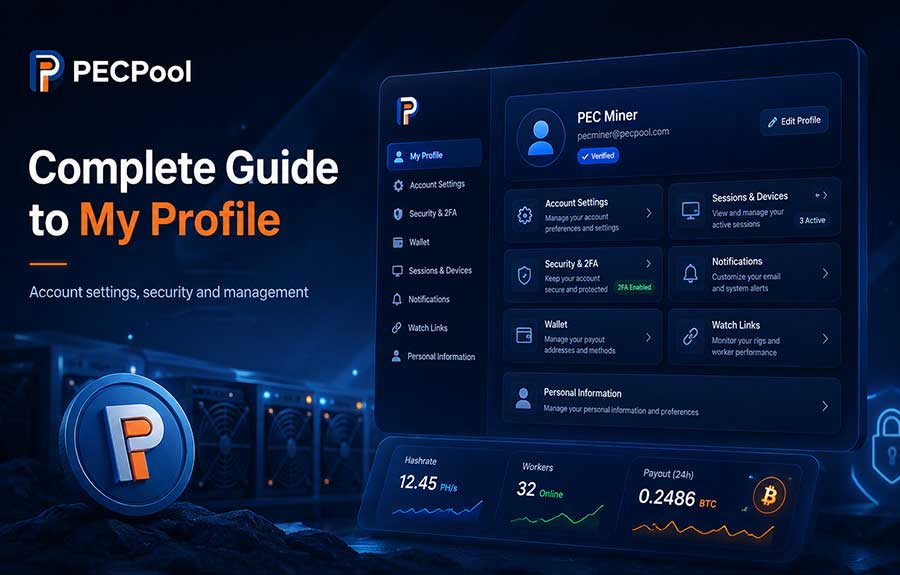
Learn how to use all six tabs in the PECPool My Profile section: My Profile, User, Security, Accessibility, Settings, and Alerts. This guide explains account information, password changes, Two-Factor Authentication, Farm Key and Farm Secret credentials, panel preferences, browser notifications, security practices, and common profile problems.

The My Profile section is the main area for managing your PECPool user account, login security, access credentials, panel preferences, and browser notifications.

It is important to understand that your PECPool user profile is different from your mining accounts. Your user profile controls how you sign in and access PECPool, while mining accounts organize workers, hashrate, earnings, balances, and payouts.

The current PECPool My Profile section contains six tabs:

  1. My Profile
  2. User
  3. Security
  4. Accessibility
  5. Settings
  6. Alerts

This guide explains what each tab is used for, which information should be protected, and how to manage your PECPool profile safely.

How to Open My Profile

  1. Sign in to the official PECPool control panel.
  2. Open the user menu in the panel.
  3. Select My Profile.
  4. Use the six available tabs to manage the required section.

The official PECPool control panel addresses are:

  • https://cp.pecpool.com
  • https://cp.pecpool.cc

Always verify the domain before entering your password, verification code, Two-Factor Authentication code, Farm Secret, or other sensitive account information.

Overview of the Six My Profile Tabs

Tab Main Purpose
My Profile Review the main information associated with your PECPool user profile
User Manage the password used to sign in to PECPool
Security Enable or change Two-Factor Authentication
Accessibility View and protect the Farm Key and Farm Secret used for monitoring and API access
Settings Manage user-level panel preferences
Alerts Enable and manage supported browser notifications and alerts

1. My Profile Tab

The My Profile tab displays the main information connected to your PECPool user account.

Use this tab to review your core profile information and confirm that you are signed in to the correct PECPool user account.

The exact fields displayed may depend on the current panel version and the information available for your account.

User Profile vs Mining Account

A PECPool user profile and a mining account are not the same thing.

Item Purpose
User Profile Controls panel login, password, security, credentials, settings, and alerts
Mining Account Organizes workers, hashrate, earnings, balance, wallet, and payouts

One PECPool user profile may have access to multiple mining accounts.

Changing information in My Profile does not automatically rename a mining account or change the worker names configured in your ASIC miners.

Registered Email Security

Your registered email account is an important part of PECPool security.

Email access may be required for operations such as:

  • Password recovery
  • Security verification
  • Two-Factor Authentication changes
  • Wallet confirmation
  • Important account notifications

Protect the registered email with a strong password and its own Two-Factor Authentication when supported by the email provider.

Do not use the same password for your PECPool account and registered email account.

Review Profile Information Carefully

When reviewing your profile:

  • Confirm that the displayed account belongs to you or your organization.
  • Confirm that you still control the registered email account.
  • Do not leave your profile open on a shared computer.
  • Sign out from devices you no longer use.
  • Contact official support when important profile information appears incorrect.

2. User Tab

The User tab is used to manage the password associated with your PECPool login.

The PECPool login password is different from:

  • The Pool Password entered in an ASIC miner
  • The miner's local administrator password
  • Your registered email password
  • Your Two-Factor Authentication code
  • Your Farm Secret
  • Your Bitcoin wallet private key

How to Change Your PECPool Password

The general process is:

  1. Open My Profile.
  2. Select the User tab.
  3. Enter the required current password when requested.
  4. Enter a new strong password.
  5. Repeat the new password correctly.
  6. Save the changes.
  7. Sign in again when the panel requests a new login.

Choose a Strong Password

A strong PECPool password should:

  • Be unique to PECPool
  • Be long enough to resist guessing
  • Contain a combination of letters, numbers, and symbols
  • Not contain your mining account name
  • Not contain your worker name
  • Not contain your email address
  • Not be reused from another website

A password manager can help generate and securely store a unique password.

Do Not Use the PECPool Password in Your Miner

The Password field shown in Antminer, WhatsMiner, and other ASIC pool configurations is not the PECPool login password.

When no special stratum password is required, the Pool Password is normally:

x

Never enter your PECPool login password in the miner's Pool Password field.

If You Forgot Your Password

Use the Forgot Password option on the official PECPool login page.

The general process is:

  1. Open the official PECPool login page.
  2. Select Forgot Password.
  3. Enter the requested username or registered email information.
  4. Open the password-reset email.
  5. Follow the official reset instructions.
  6. Create a new unique password.

Do not use password-reset links received from unknown users, unofficial Telegram accounts, or unverified domains.

Change the Password Immediately When:

  • You entered it on an unofficial website.
  • You shared it with another person.
  • Your computer or browser may be compromised.
  • You notice unfamiliar account activity.
  • Your registered email account was compromised.
  • A former employee or service provider knew the password.

3. Security Tab

The Security tab contains the PECPool Two-Factor Authentication settings.

Two-Factor Authentication adds an additional verification layer for sensitive account operations.

In PECPool, 2FA may be required for operations such as manual transfers and other sensitive account actions.

How to Enable or Change 2FA

The general process is:

  1. Open My Profile.
  2. Select the Security tab.
  3. Open the 2FA Authentication section.
  4. Select Send next to the verification-code field.
  5. Open the verification email sent to your registered address.
  6. Copy the email verification code.
  7. Enter the verification code in the PECPool panel.
  8. Enter your new 2FA code.
  9. Enter the same 2FA code again in the repeat field.
  10. Select Save.

The email verification code may expire after approximately 30 minutes. Request a new code when the previous one has expired.

Protect Your 2FA Code

Never share your Two-Factor Authentication code with:

  • PECPool Support
  • Telegram users
  • Mining technicians
  • Hosting providers
  • Business partners
  • Anyone contacting you through a private message

PECPool Support does not need your personal 2FA code to investigate a normal account or payout question.

If You Receive an Unexpected Verification Email

If you receive a 2FA verification email that you did not request:

  1. Do not use or share the verification code.
  2. Change your PECPool password.
  3. Secure your registered email account.
  4. Review your account activity and active sessions.
  5. Contact PECPool through an official support channel.

If You Need a 2FA Reset

When you still have access to the registered email address, send the reset request from that same email address to:

support@pecmine.com

After the existing 2FA setting is reset, you must configure Two-Factor Authentication again from the beginning.

When you no longer have access to the registered email address, PECPool may require account ownership verification before a security reset can be processed.

Do not ask another person to send the reset email from an unrelated address.

4. Accessibility Tab

The Accessibility tab contains credentials used to connect authorized PECPool services, monitoring installations, and professional API integrations to your farm.

The main credentials are:

  • Farm Key
  • Farm Secret

What Is the Farm Key?

The Farm Key identifies the PECPool farm or authorized integration making a request.

It may be required when:

  • Installing the PECPool monitoring service
  • Connecting an authorized internal application
  • Using the PECPool professional API
  • Configuring approved farm integrations

What Is the Farm Secret?

The Farm Secret is the confidential credential associated with the Farm Key.

For API integrations, it is used locally to create the HMAC signature required to authenticate requests.

The Farm Secret should not be included directly as a normal API request value or exposed in logs, screenshots, source code, or public documents.

Farm Credentials and Monitoring Installation

The PECPool monitoring installer requests:

  1. The Farm Key
  2. The Farm Secret

These credentials connect the Windows monitoring service to the intended PECPool farm.

Obtain them directly from the Accessibility tab and enter them only into the official PECPool monitoring installer.

Farm Credentials and the Professional API

The PECPool professional API uses separate farm credentials and HMAC request signing for authorized read-only access to mining information.

Depending on the requested API route, authorized data may include:

  • Farm information
  • Mining accounts
  • Workers
  • Miners
  • Earnings
  • Payouts
  • Hashrate charts

API access is designed for software integration and should be implemented only by authorized technical personnel.

Protect the Farm Secret

Do not:

  • Publish it in screenshots
  • Send it to a public Telegram group
  • Place it in a public source-code repository
  • Store it in an unprotected text file
  • Include it in application logs
  • Share it with unauthorized employees or contractors
  • Send it through an unverified support conversation

Recommended Storage

Store the Farm Secret using:

  • A secure secrets manager
  • Protected application configuration
  • Restricted Windows service configuration
  • Environment variables with appropriate permissions
  • Another approved organizational secret-storage system

If the Farm Secret Is Exposed

  1. Stop using the exposed credential.
  2. Remove it from screenshots, logs, messages, or repositories where possible.
  3. Review the systems that used the credential.
  4. Replace or revoke the affected credential through the available security process.
  5. Update authorized monitoring services and API integrations.
  6. Contact official PECPool Support when assistance is required.

Farm Secret vs Other Passwords

Credential Where It Is Used
PECPool Password Signing in to the control panel
Miner Administrator Password Accessing the miner's local management interface
Pool Password ASIC stratum configuration, normally x
2FA Code Authorizing sensitive PECPool operations
Farm Secret Authorized monitoring and API authentication

5. Settings Tab

The Settings tab contains the user-level preferences available for your PECPool panel.

The options in this tab control panel behavior and user preferences. They do not directly change the stratum configuration stored inside your ASIC miners.

Available settings may change as PECPool adds or improves panel features.

How to Change a Panel Setting

  1. Open My Profile.
  2. Select the Settings tab.
  3. Review the label and description of each available option.
  4. Change only the required preference.
  5. Select Save when required.
  6. Refresh or reopen the panel when the change is not immediately visible.

Settings Do Not Change Miner Configuration

Changing a preference in My Profile does not normally change:

  • The Pool URL inside an Antminer or WhatsMiner
  • The mining account entered in the worker field
  • The physical miner's network configuration
  • The miner administrator password
  • The worker name stored in the ASIC miner

Miner configuration is managed separately through the miner interface or supported PECPool miner-management tools.

After Changing a Setting

Confirm that:

  • The setting was saved successfully.
  • The panel displays the expected behavior.
  • Another browser or device is not using an old cached version.
  • The change did not affect an unintended user preference.

6. Alerts Tab

The Alerts tab is used to manage supported browser notifications for your PECPool account.

Browser alerts can help inform you about relevant mining, panel, support, and account events without requiring the dashboard to remain continuously visible.

Available alert categories may include:

  • Hashrate reductions
  • Worker status changes
  • Miner monitoring events
  • Support-ticket activity
  • Important panel notifications
  • Relevant account or security events

The available categories depend on the current panel version and enabled PECPool services.

How to Enable Browser Alerts

  1. Open My Profile.
  2. Select the Alerts tab.
  3. Enable the required alert or browser-notification option.
  4. Select Allow when the browser requests notification permission.
  5. Review the available notification categories.
  6. Enable only the categories you require.
  7. Save the settings.

Browser Permission Is Required

Enabling an alert in PECPool may not be enough when the browser or operating system has blocked notification permission.

Check:

  • The browser allows notifications from the official PECPool panel.
  • The operating system allows notifications from the browser or installed PWA.
  • Do Not Disturb mode is not blocking alerts.
  • Battery-saving settings are not stopping background notifications.
  • The browser is updated.
  • The device has internet access.

Browser Alerts and Telegram Are Different Channels

Browser alerts and Telegram notifications are separate delivery methods.

Channel Requirement
Browser Alerts Browser permission and supported notification subscription
Telegram Alerts Connection to the official PECPool Telegram bot

Enabling browser alerts does not automatically connect Telegram, and connecting Telegram does not automatically grant browser notification permission.

Alerts on the Installed PWA

When PECPool is installed as a Progressive Web App, supported alerts may appear through the installed application or its underlying browser.

Review both:

  • The PECPool Alerts tab
  • The device notification settings for the PECPool PWA or browser

If Browser Alerts Do Not Arrive

  1. Confirm that the required alert category is enabled.
  2. Open the browser's site-permission settings.
  3. Allow notifications for the official PECPool domain.
  4. Check operating-system notification permissions.
  5. Confirm that the browser or PWA can run in the background.
  6. Confirm that an eligible alert event has occurred.
  7. Refresh the panel and save the alert settings again.

Do Not Depend Only on Automated Alerts

Browser and Telegram notifications are operational assistance tools. They may occasionally be delayed because of:

  • Internet problems
  • Browser restrictions
  • Operating-system background limits
  • Device notification settings
  • Third-party service availability

Critical mining operations should also use the PECPool dashboard, miner monitoring, local network monitoring, power monitoring, and documented operational procedures.

Security Controls Related to My Profile

The My Profile section contains several of the most sensitive controls in your PECPool account.

Protect it by:

  • Using a strong and unique password
  • Enabling Two-Factor Authentication
  • Protecting the registered email account
  • Keeping the Farm Secret confidential
  • Reviewing active or recent account sessions
  • Signing out from devices you no longer use
  • Not leaving the panel open on shared computers
  • Using only official PECPool domains

Review Active Sessions

Session controls help protect your account when a device is lost, shared, replaced, or no longer trusted.

When session-management information is available, review:

  • Active devices
  • Recent login activity
  • Browsers you no longer use
  • Unexpected or unfamiliar sessions

End sessions that you do not recognize and change your password when suspicious activity is detected.

My Profile Does Not Load

Try the following:

  1. Refresh the page.
  2. Confirm that your internet connection is working.
  3. Sign out and sign in again.
  4. Open the panel through another supported browser.
  5. Clear only the affected PECPool site data when necessary.
  6. Disable browser extensions that may block required scripts.
  7. Check whether the panel works through the alternative official domain.

Changes Are Not Saved

Check:

  • All required fields were completed.
  • The repeated value matches the original value.
  • The verification code has not expired.
  • The password or 2FA code follows the required format.
  • Your login session has not expired.
  • The browser has a stable internet connection.

Read the displayed error before submitting the same request repeatedly.

Email Verification Code Does Not Arrive

Check:

  • The registered email inbox
  • The Spam or Junk folder
  • Email filtering rules
  • Mailbox storage capacity
  • Whether the correct PECPool account is open
  • Whether enough time has passed for delivery

Request a new code after the previous request has expired or when the panel allows another request.

The Verification Code Is Invalid

Possible reasons include:

  • The code has expired.
  • A newer code was requested.
  • The code belongs to another account operation.
  • A character was copied incorrectly.
  • Spaces were included when pasting the code.

Use the most recent code sent for the exact operation you are performing.

Farm Key or Farm Secret Is Not Visible

Check:

  • You opened the Accessibility tab.
  • You are signed in to the correct PECPool user account.
  • Your user has permission to view the farm credentials.
  • The page has fully loaded.
  • The browser is not blocking required content.

Do not ask another user to send sensitive credentials through a public conversation.

Common My Profile Mistakes

  • Confusing the PECPool user profile with a mining account
  • Using the PECPool login password in the miner's Pool Password field
  • Sharing a 2FA code with another person
  • Publishing the Farm Secret in a screenshot
  • Connecting an unofficial application with farm credentials
  • Enabling alerts without granting browser permission
  • Changing several security settings without reviewing the result
  • Leaving old sessions active on shared devices
  • Using an unofficial PECPool domain
  • Ignoring an unexpected verification email

Quick Reference

Task My Profile Tab
Review basic user-profile information My Profile
Change the PECPool login password User
Enable or change Two-Factor Authentication Security
View Farm Key and Farm Secret Accessibility
Manage panel preferences Settings
Enable browser notifications Alerts

Final Checklist

  • The registered profile information has been reviewed.
  • The registered email account is secure and accessible.
  • The PECPool password is strong and unique.
  • The password is not used inside ASIC pool settings.
  • Two-Factor Authentication is enabled.
  • The 2FA code is not shared with anyone.
  • The Farm Key and Farm Secret are stored securely.
  • The Farm Secret is not visible in screenshots or logs.
  • Only authorized monitoring and API systems use farm credentials.
  • Panel settings have been reviewed carefully.
  • Required browser alerts are enabled.
  • Browser and operating-system notification permissions are allowed.
  • Old or unfamiliar sessions have been ended.
  • Only official PECPool domains are used.

Keep Your PECPool Profile Secure

My Profile is more than a page containing basic user information. It controls the password, Two-Factor Authentication, farm credentials, panel preferences, and notification settings that protect and support your PECPool operation.

Review all six tabs periodically, protect the registered email account, keep the Farm Secret confidential, enable the required security features, and remove access from devices or users that are no longer authorized.

Proper profile management helps protect your mining data, monitoring integrations, payouts, and access to the PECPool platform.
Complete Guide to My Profile