


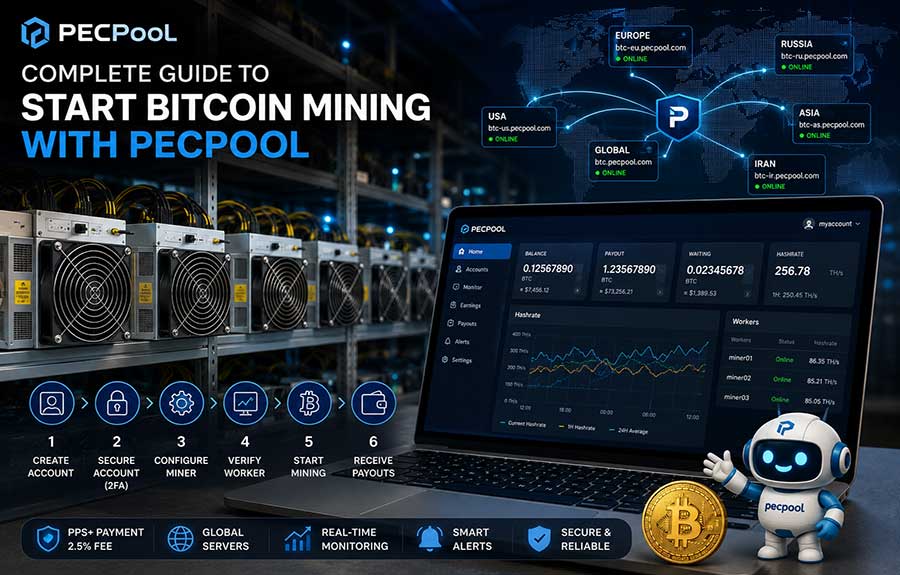
This complete beginner’s guide explains how to create and secure a PECPool account, identify your mining account, select the best Bitcoin stratum servers, configure an ASIC miner, create a worker name, verify accepted shares, monitor hashrate, and prepare your account for payouts.
PECPool combines Bitcoin mining, worker and hashrate monitoring, mining account management, alerts, earnings information, and payout tools in one integrated platform.
This guide walks you through the complete setup process—from creating your account to confirming that your miner is successfully submitting valid shares.
To mine Bitcoin with PECPool, you need:
Common Bitcoin ASIC miners include Bitmain Antminer and MicroBT WhatsMiner devices.
Mining software installed on a normal computer is not required when using an ASIC miner. The ASIC connects directly to the PECPool stratum server.
PECPool Monitoring is a separate optional feature. It is not required for submitting mining shares, but it provides additional miner monitoring and management capabilities.
Open the official PECPool control panel and select Create Account.
Complete the registration form using an email address that you can access. Your registered email may later be required for security confirmations, wallet changes, password recovery, and other sensitive account operations.
After registration:
Always verify that you are using an official PECPool address before entering your credentials.
Official control panel addresses include:
https://cp.pecpool.comhttps://cp.pecpool.ccNever enter your PECPool password, wallet information, or security code on an unknown website.
Before configuring mining or payout settings, protect your account with Two-Factor Authentication.
After signing in:
Do not share your account password, email verification code, or 2FA code with anyone.
PECPool Support will never need your password or 2FA code to answer a normal support request.
Open the Accounts section in the PECPool panel.
Your mining account name is the identity used by the pool to assign submitted shares, hashrate, earnings, workers, and payouts to the correct account.
The mining account name is not necessarily the same as:
Copy the mining account name exactly as displayed in the panel. Account names and worker names may be case-sensitive on some mining devices or firmware versions, so avoid changing uppercase or lowercase characters.
Users managing multiple mining operations may have more than one mining account. Make sure you select the correct account before copying its pool configuration.
A stratum server connects your ASIC miner to the mining pool.
PECPool provides regional Bitcoin stratum servers so miners can select a server with stable connectivity and lower network latency.
| Region | Server | Available Ports |
|---|---|---|
| Global | btc.pecpool.com | 3333, 443, 25 |
| United States | btc-us.pecpool.com | 3333, 443, 25 |
| Europe | btc-eu.pecpool.com | 3333, 443, 25 |
| Russia | btc-ru.pecpool.com | 3333, 443, 25 |
| Asia | btc-as.pecpool.com | 8443, 443, 25 |
| Iran | btc-ir.pecpool.com | 8443, 443, 25 |
| Iran Alternative | btc.pecpool.cc | 8443, 443, 25 |
The complete stratum format is:
stratum+tcp://server-address:port
For example:
stratum+tcp://btc-eu.pecpool.com:3333
Most ASIC miners support Pool 1, Pool 2, and Pool 3.
You should configure all three fields. If the primary server becomes temporarily unreachable, the miner can automatically try the second or third server.
A recommended configuration normally includes:
The order should be selected according to your location and network conditions. Use the PECPool panel’s location selector and Pool Servers section to view the currently recommended order for your area.
stratum+tcp://btc-eu.pecpool.com:3333stratum+tcp://btc.pecpool.com:443stratum+tcp://btc-us.pecpool.com:25This is only an example. A server with the lowest and most stable latency from your actual mining location is normally the better primary choice.
A worker name identifies an individual mining device under your mining account.
Use a separate worker name for every miner. This makes it easier to identify:
A common worker format is:
AccountName.WorkerName
Example:
myaccount.miner01
For multiple devices, you can use:
myaccount.miner01myaccount.miner02myaccount.miner03You may also use names based on location or rack position:
myaccount.rack01amyaccount.room2m05myaccount.siteb01Use short and recognizable worker names. Avoid spaces and unnecessary special characters.
Do not use the same worker name for multiple miners unless specifically required by your operating setup. Unique names provide more accurate worker-level monitoring.
In normal operation, the worker appears automatically in the PECPool panel after the miner connects and begins submitting valid shares. You do not usually need to create each worker manually before connecting the miner.
Your computer or mobile device must be connected to the same local network as the miner.
Find the miner’s IP address using one of these methods:
Enter the miner’s IP address in a web browser.
Example:
http://192.168.1.100
Sign in using the miner’s local administrator username and password.
The exact menu name depends on the manufacturer and firmware. Common menu names include:
Enter the three selected PECPool stratum addresses in the Pool 1, Pool 2, and Pool 3 fields.
For each pool, enter the same PECPool mining account with a unique worker name.
Pool 1 URL
stratum+tcp://btc-eu.pecpool.com:3333
Pool 1 Worker
myaccount.miner01
Pool 1 Password
x
Repeat the worker information for Pool 2 and Pool 3.
The pool password is not your PECPool panel password. Never enter your panel login password in the miner’s pool password field.
Use the pool password displayed or recommended by PECPool. When no specific pool password is required, a simple placeholder such as x may be used.
A complete sample configuration may look like this:
stratum+tcp://btc-eu.pecpool.com:3333myaccount.miner01xstratum+tcp://btc.pecpool.com:443myaccount.miner01xstratum+tcp://btc-us.pecpool.com:25myaccount.miner01xCheck all values carefully before saving. The most common configuration errors are:
Click the miner’s Save, Apply, or Save & Apply button.
Some miners automatically restart the mining process after saving. Other models may require a manual restart.
Wait a few minutes and open the miner’s status page.
Depending on the miner, this page may be called:
Confirm that:
The second and third pool servers may appear as backup or inactive while Pool 1 is connected. This is normal.
After the miner begins submitting valid shares, return to the PECPool panel.
Open Monitor and review the worker information for the selected mining account.
A newly connected or restarted worker may require approximately 10 to 20 minutes to appear or change to Online status.
Check the following information:
Do not compare the miner’s local hashrate and pool hashrate immediately after startup.
The miner usually displays a short-term hardware estimate, while the pool calculates hashrate from valid shares actually received over time. Temporary differences are normal, especially during the first few minutes after connecting or restarting a miner.
Allow enough time for the pool average to stabilize before evaluating performance.
Mining can begin after the worker is connected, but a confirmed Bitcoin wallet address is required before payouts can be sent.
To register or change a wallet:
Always verify:
Bitcoin transactions are irreversible after they are broadcast and confirmed by the network.
PECPool uses the PPS+ payment method. Rewards are calculated using valid shares submitted by your miners, along with Bitcoin network conditions, block rewards, transaction fees, and the published pool fee.
The standard PECPool mining fee is 2.5%.
Mining income is variable. It may change because of:
No mining pool can guarantee a fixed daily profit.
After your worker is online, enable alerts so you can respond more quickly to mining interruptions.
PECPool can provide notifications for supported events such as:
To receive Telegram alerts, open the official PECPool Telegram bot:
@pecpoolbot
Follow the instructions in the PECPool panel to connect your Telegram account and enable the required notification options.
Always verify that you are using the official bot before following instructions or opening links.
Connecting an ASIC miner to the PECPool mining pool and installing PECPool Monitoring are two different processes.
Your miner can submit shares and generate mining rewards without the separate Monitoring service.
Installing PECPool Monitoring provides additional operational capabilities, including supported miner information, centralized monitoring, alerts, and remote management tools.
It is especially useful for:
Install the Monitoring service only from the official PECPool panel and protect your API Key and Secret.
Check that:
Also review the miner logs for DNS, authentication, socket, or connection errors.
Try the following:
Ports 443 or 25 may work on networks where a standard mining port is restricted. Always use only the official PECPool server addresses.
Authorization errors are commonly caused by:
Copy the account name directly from the PECPool panel and enter a simple, unique worker name.
A temporary difference between local miner hashrate and pool hashrate is normal.
Pool hashrate is calculated from received shares and requires time to stabilize. Persistent low hashrate may be caused by:
Evaluate the worker over a longer period instead of relying only on a few minutes of data.
Check:
Use the nearest stable PECPool server and avoid aggressive performance settings that reduce hardware or network stability.
Before considering the setup complete, confirm that:
After the worker is online, PECPool will begin displaying mining information as valid shares are received.
Use the dashboard regularly to review:
For the most reliable operation, keep all three pool addresses configured, use a stable regional server, assign a unique name to every worker, and review alerts before a small issue becomes extended mining downtime.
You have now completed the basic process required to start Bitcoin mining with PECPool.
Copyright ©2026 PECPool.