


Learn how to install the PECPool Cloud Miner Monitor on a Windows computer, prepare the mining network, obtain your Farm Key and Farm Secret, complete the installer, verify miner data in the panel, and troubleshoot common installation and connectivity problems.
PECPool Monitoring allows mining operators to collect operational information from supported ASIC miners and display it through the PECPool panel.
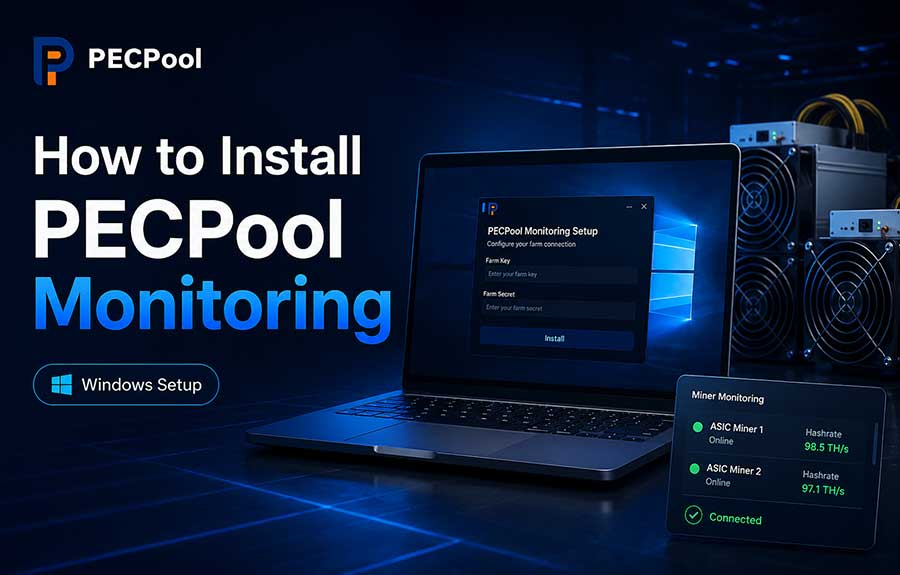
The monitoring software runs as a Windows-based background service on a computer or server that can communicate with both PECPool and the mining devices.
After installation, the monitoring service can help PECPool display information such as:
This guide explains how to prepare the monitoring computer, obtain the required credentials, install the PECPool Cloud Miner Monitor, verify the installation, and solve common problems.
PECPool Monitoring is different from normal pool-side worker monitoring.
When an ASIC miner connects to a PECPool stratum server, PECPool can calculate pool-side information such as worker status, accepted shares, and effective hashrate.
The PECPool Cloud Miner Monitor adds direct access to supported miner information through the local mining network.
| Monitoring Type | Source of Information | Examples |
|---|---|---|
| Pool-Side Monitoring | Shares received by PECPool | Worker status, effective hashrate, accepted shares |
| Miner Monitoring | Direct communication with the ASIC miner | Temperature, local hashrate, uptime, model, hardware status |
The monitoring service does not replace the miner's stratum configuration. Your miners must still be configured with the correct PECPool Pool URL, mining account, and worker name.
The published minimum requirements for the Windows monitoring computer are:
| Component | Minimum Requirement |
|---|---|
| Processor | 2.5 GHz |
| Memory | 2 GB RAM |
| Storage | 50 GB available disk space |
| Operating System | Supported Windows computer or Windows Server |
| Internet | Stable and continuous internet connection |
| Local Network | Network access to the monitored ASIC miners |
A larger mining operation may require more processor, memory, and network capacity depending on the number of miners and the amount of collected information.
Install PECPool Monitoring on a Windows computer or server that:
The monitoring computer should normally be connected to the same local network as the miners.
It can also be located on another routed network when the required network access is available through a secure site-to-site connection or VPN.
Installing the software on a personal computer that is regularly turned off will interrupt miner monitoring whenever that computer is unavailable.
Before installing the monitoring software, confirm that the Windows computer can communicate with the miners.
Check the following:
From the Windows monitoring computer, open Command Prompt and test the local IP address of a miner:
ping 192.168.1.100Replace the example IP address with the actual address of your miner.
Some miners may not reply to Ping even when their management interface is accessible. You should also test the miner's web interface in a browser:
http://192.168.1.100If the monitoring computer cannot reach the miner, correct the local network, routing, VLAN, firewall, or IP configuration before continuing.
Miner IP addresses should remain predictable so the monitoring service can continue reaching the correct devices.
Recommended methods include:
Avoid assigning the same static IP address to more than one device.
The PECPool Cloud Miner Monitor requires a Farm Key and Farm Secret to connect the monitoring installation to the correct PECPool farm.
To locate the credentials:
The official PECPool control panel addresses are:
https://cp.pecpool.comhttps://cp.pecpool.cc| Credential | Purpose |
|---|---|
| Farm Key | Identifies the PECPool farm connected to the monitoring service |
| Farm Secret | Authenticates communication for that farm |
The Farm Key and Farm Secret are not:
The Farm Secret is a sensitive credential.
Do not:
If you believe the Farm Secret has been exposed, replace the affected credentials through the PECPool panel and update the monitoring installation.
Download PECPool Monitoring only from the official PECPool download address:
https://static.pecpool.com/Upgrade/Setup.exeDo not download the installer from unknown websites, file-sharing services, private messages, or unofficial Telegram accounts.
Using the official download address helps ensure that you receive the current PECPool setup file.
After downloading Setup.exe:
The installer opens a command window with the following title:
Install PECPool Cloud Miner MonitorThe installer first displays:
Enter your farm key:Enter the Farm Key copied from the PECPool panel and press Enter.
Check that:
After the Farm Key is accepted, the installer displays:
Enter your farm secret:Enter the Farm Secret copied from the PECPool panel and press Enter.
When entering a secret in a command window, the characters may not always be displayed. This can be a normal security behavior.
Enter the value carefully and do not publish a screenshot containing the real credentials.
The installer configures the required PECPool monitoring components and Windows background service.
During installation:
Wait until the setup process reports that installation has completed.
After successful installation, the PECPool monitoring service runs in the background. The setup window does not need to remain open during normal operation.
The Windows computer must remain powered on and connected to the network for continuous monitoring.
The service requires:
To verify that the monitoring service is running:
Windows + R.services.msc.Do not change the service account, startup configuration, or executable path unless instructed by PECPool Support.
After installation:
Depending on the supported miner and available data, verify:
The monitoring installation is successful when the service is running and current miner information is being received in the PECPool panel.
Installing the monitoring service allows supported miner information to be collected. Some remote-management functions may require additional miner credentials or API access.
Supported management functions may include:
Availability depends on the miner manufacturer, model, firmware, network access, and account permissions.
For supported Antminer devices, remote-management operations may require the miner's local administrator password to be saved in the miner settings inside the PECPool panel.
General process:
The miner administrator password is separate from the PECPool account password.
Supported WhatsMiner management operations may require API control to be enabled through the official WhatsMinerTool application.
General process:
Monitoring information may be available even when some remote commands are not enabled.
If Setup.exe does not open:
Do not disable security software permanently. Review why the file was blocked and verify that it came from the official PECPool download address.
Check the following:
Copy the credentials again directly from My Profile and repeat the installation.
If the service exists but shows Stopped:
services.msc.If the service stops again immediately, record the error and contact PECPool Support.
Check:
Test a miner directly from the monitoring computer:
ping 192.168.1.100Then test its local management page:
http://192.168.1.100When only some miners are missing, compare the affected devices with the working devices.
Check:
A problem affecting only one miner is less likely to be caused by the main PECPool monitoring installation.
Check:
The service should be configured to start automatically with Windows.
Delayed updates may be caused by:
Check the Windows computer's processor, memory, storage, and network usage.
The Windows Firewall must allow the monitoring service to communicate:
Do not expose the monitoring computer or miner web interfaces directly to the public internet.
Use secure local networking, firewall rules, and VPN access for remote administration.
Some farms place miners and management computers in separate VLANs.
When network segmentation is used, allow only the required communication between:
Confirm that routing and firewall policies allow return traffic.
If installation or monitoring still does not work, provide:
Never send:
Use only official support channels:
support@pecmine.comThe PECPool Cloud Miner Monitor depends on the Windows monitoring computer to collect information from your mining devices.
For continuous and reliable monitoring, keep the computer powered on, connected to the local mining network, and connected to the internet.
After installation, verify both sides of the connection: confirm that the Windows service is running and confirm that current miner information is visible in the PECPool panel.
Copyright ©2026 PECPool.