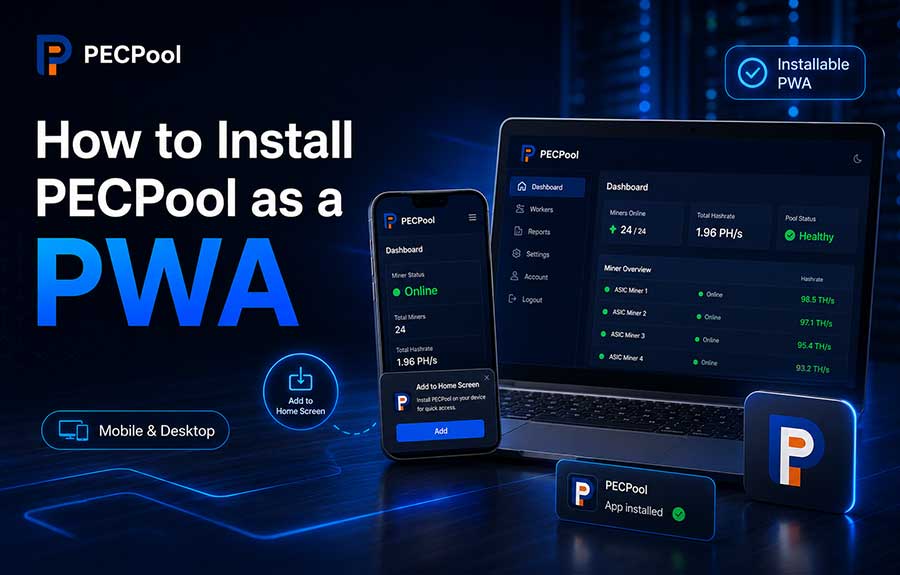
Learn how to install the PECPool panel as a Progressive Web App on Android, iPhone, iPad, Windows, macOS, and supported desktop browsers. This guide explains installation through Chrome, Safari, and Microsoft Edge, how to open PECPool in standalone app mode, manage permissions, update or uninstall the PWA, and solve common installation problems.
The PECPool panel can be installed as a Progressive Web App, commonly called a PWA, on
supported mobile and desktop devices.
After installation, PECPool appears on the device Home Screen, desktop, Start menu, or
application launcher and can be opened in a standalone application-style window.
A PECPool PWA provides fast access to mining information without requiring a traditional
application download from Google Play, the Apple App Store, or another software marketplace.
This guide explains how to install PECPool as a PWA on Android, iPhone, iPad, Windows,
macOS, and supported desktop browsers.
What Is a Progressive Web App?
A Progressive Web App is a web-based application that can be installed on a supported
device and opened similarly to a normal application.
The PECPool PWA uses the official PECPool panel while providing a more application-like
experience.
Depending on the device and browser, an installed PWA may provide:
- An application icon on the Home Screen or desktop
- A standalone window without the normal browser toolbar
- Faster access to the PECPool panel
- Integration with the device application launcher
- Taskbar, Start menu, or desktop shortcuts
- Notification support where available and permitted
What Can You Access Through the PECPool PWA?
The installed PWA provides access to the same authorized PECPool account and panel features
available through the supported web panel.
Depending on your account type and permissions, these may include:
- Dashboard information
- Mining accounts
- Worker status
- Current, 1-hour, and 24-hour hashrate
- Hashrate charts
- Miner monitoring information
- Earnings and balance information
- Payout history
- Notifications and alerts
- Account and security settings
- Watch Links
- Support options
The available sections depend on your PECPool account, user type, configured features, and
access permissions.
PWA vs Normal Browser Access
| Feature |
Normal Browser |
Installed PWA |
| Access Method |
Open the browser and enter the panel address |
Open the PECPool application icon |
| Browser Toolbar |
Normally visible |
Normally hidden in standalone mode |
| Home Screen or Desktop Icon |
Optional shortcut |
Installed application icon |
| App Store Required |
No |
No |
| Updates |
Loaded through the website |
Loaded automatically through the web application |
Official PECPool Panel Addresses
Use only the official PECPool control panel addresses:
https://cp.pecpool.comhttps://cp.pecpool.cc
Always verify the domain before entering your email address, password, Two-Factor
Authentication code, wallet information, or other account data.
Install the PWA only while visiting an official PECPool panel address.
Requirements Before Installation
Before installing the PECPool PWA, confirm that:
- Your device has a current supported browser.
- The device is connected to the internet.
- You are visiting an official PECPool panel address.
- Private or Incognito browsing mode is not being used.
- The browser is allowed to create Home Screen or application shortcuts.
- Sufficient device storage is available.
Browser menu names may change slightly between operating-system and browser versions.
How to Install PECPool on Android Using Chrome
Google Chrome on Android can install supported web applications directly from the browser.
- Open Google Chrome on the Android device.
- Go to the official PECPool panel.
- Sign in to your account when required.
- Tap the three-dot Chrome menu.
- Select Install app, Install PECPool, or Add to Home screen.
- If another menu appears, select Install.
- Review the application name and icon.
- Tap Install or Add.
After installation, the PECPool icon should appear on the Android Home Screen or application
launcher.
Alternative Android Installation Prompt
On some Android devices, Chrome may display an installation message or icon automatically.
The prompt may appear as:
- Install PECPool
- Add PECPool to Home screen
- Install app
- An installation icon in the browser address bar
Tap the displayed installation option and confirm the request.
How to Open the PECPool PWA on Android
After installation:
- Return to the Android Home Screen or application list.
- Locate the PECPool icon.
- Tap the icon.
- Sign in when your session is not already active.
The panel should open in a standalone application-style window rather than as a normal
browser tab.
How to Install PECPool on iPhone or iPad
On iPhone and iPad, use Safari to add PECPool to the Home Screen as a web application.
- Open Safari.
- Go to the official PECPool control panel.
- Tap the Share button.
- Scroll through the available actions.
- Select Add to Home Screen.
- Enable Open as Web App when the option is displayed.
- Review the PECPool name and icon.
- Tap Add.
The PECPool icon will be added to the iPhone or iPad Home Screen.
Add to Home Screen Is Missing on iPhone
If Add to Home Screen does not appear:
- Confirm that the page is open in Safari.
- Open the Safari Share menu.
- Scroll to the bottom of the action list.
- Tap Edit Actions.
- Add Add to Home Screen to the available actions.
- Return to the Share menu and select it.
Opening the page inside an email application, Telegram, another social application, or an
embedded browser may prevent the required Safari installation option from appearing.
How to Open the PECPool PWA on iPhone or iPad
After installation:
- Return to the Home Screen.
- Locate the PECPool icon.
- Tap the icon.
- Sign in when required.
When installed correctly, PECPool should open in a standalone application-style view.
How to Install PECPool on Windows Using Chrome
Google Chrome can install supported web applications on Windows.
- Open Google Chrome.
- Go to the official PECPool panel.
- Look for the installation icon near the right side of the address bar.
- Select the installation icon when available.
- Alternatively, open the three-dot Chrome menu.
- Open Cast, save and share or the equivalent application menu.
- Select Install page as app or Install PECPool.
- Confirm the installation.
The installed PECPool PWA may appear in:
- The Windows Start menu
- The desktop
- The Windows taskbar when pinned
- The Chrome application management page
How to Install PECPool Using Microsoft Edge
Microsoft Edge supports installing websites and Progressive Web Apps as desktop applications.
- Open Microsoft Edge.
- Go to the official PECPool panel.
- Open the three-dot Settings and more menu.
- Open Apps.
- Select Install this site as an app.
- Review the displayed PECPool name.
- Select Install.
After installation, Edge may provide options to:
- Pin PECPool to the taskbar
- Pin PECPool to the Start menu
- Create a desktop shortcut
- Allow the app to start when signing in
How to Install PECPool on macOS Using Chrome
On supported versions of Chrome for macOS:
- Open Google Chrome.
- Go to the official PECPool control panel.
- Select the installation icon in the address bar when displayed.
- Alternatively, open the Chrome menu.
- Select the available option to install the page as an application.
- Confirm the installation.
The installed PWA may appear in the macOS application launcher or other application
locations supported by the browser.
Install Button vs Home Screen Shortcut
Some browsers may offer both an installed PWA and a normal website shortcut.
| Type |
Behavior |
| Installed PWA |
Normally opens in a standalone application-style window |
| Website Shortcut |
May open inside a normal browser tab with the address bar visible |
When the browser provides both options, select Install or
Open as Web App for the full PWA experience.
How to Confirm PECPool Was Installed Correctly
After installation, confirm that:
- The PECPool icon appears on the device.
- The application opens from that icon.
- The official PECPool panel is displayed.
- The normal browser address bar is hidden in standalone mode.
- The dashboard and account information load correctly.
- Navigation between panel pages works normally.
If the normal browser toolbar remains visible, the device may have created a simple website
shortcut rather than installing the PWA.
Does the PECPool PWA Work Without Internet?
The PECPool PWA requires an internet connection for current mining information and account
operations.
Internet access is required to retrieve information such as:
- Current worker status
- Hashrate
- Mining charts
- Earnings
- Balances
- Payout information
- Miner-monitoring data
- Notifications and account updates
Some application resources may remain temporarily cached by the browser, but current account
and mining information cannot be guaranteed without an active connection.
Does the PWA Update Automatically?
The PECPool PWA is based on the official web panel. Most panel improvements are loaded
through the web application without requiring a new application download from an app store.
When an updated version is available:
- Close and reopen the PWA.
- Refresh the application when a refresh option is available.
- Confirm that the device has internet access.
- Update the browser when the problem continues.
In some cases, the browser may notify you when an installed web application's name, icon,
or configuration changes.
Signing In to the PECPool PWA
The PECPool PWA uses the same account credentials and security controls as the official web
panel.
To sign in:
- Open the installed PECPool application.
- Enter the registered account email or login information.
- Enter the account password.
- Complete Two-Factor Authentication when required.
Do not install or sign in to PECPool through an unofficial domain or application.
Session and Device Security
An installed PWA may retain an authenticated session according to the panel's session and
security settings.
Protect the device by:
- Using a device PIN, password, fingerprint, or face recognition
- Keeping the operating system updated
- Keeping the browser updated
- Reviewing active PECPool sessions
- Signing out on shared devices
- Not saving credentials on public computers
Installing PECPool as a PWA does not remove the need for normal account security.
Notifications in the PECPool PWA
Notification availability depends on the operating system, browser, device permissions,
and PECPool notification settings.
When notification permission is requested:
- Confirm that the request is displayed by the official PECPool application.
- Select Allow when you want browser or PWA notifications.
- Review the PECPool notification settings inside your account.
- Review the operating-system notification settings when alerts do not appear.
Blocking notification permission does not prevent normal access to the PECPool panel.
The Install Option Does Not Appear
If the PWA installation option is missing, check the following:
- The page is open through an official PECPool panel address.
- The browser supports PWA installation.
- The browser is updated.
- Private or Incognito mode is disabled.
- The page has fully loaded.
- JavaScript and required website functions are not blocked.
- A content blocker or security extension is not interfering.
- The PWA is not already installed.
Close the browser, reopen the official panel, and check the installation menu again.
The PWA May Already Be Installed
A browser may hide the installation option after the application has already been installed.
Check:
- The Android application launcher
- The iPhone or iPad Home Screen
- The Windows Start menu
- The desktop
- The macOS application list
- The browser's installed-application management page
Chrome Installed Application Management
On supported desktop versions of Chrome, installed web applications can be reviewed through:
chrome://apps
Depending on the browser version, this page may allow you to:
- Open the application
- Create shortcuts
- Manage application behavior
- Remove the application
Microsoft Edge Application Management
Installed web applications in Microsoft Edge can be managed through:
edge://apps
This page may provide options to:
- Open PECPool
- View application details
- Manage permissions
- Pin the application
- Create a desktop shortcut
- Uninstall the application
The PWA Opens in a Normal Browser Tab
If PECPool opens with the full browser address bar and tabs:
- You may have created a normal shortcut instead of installing the PWA.
- The original PWA installation may have been removed.
- The link may have been opened from the browser rather than the PECPool app icon.
- The browser or operating system may not support standalone mode for that installation.
Remove the old shortcut and reinstall PECPool using the browser's
Install app or Open as Web App option.
The PWA Shows an Old Version
If the application does not display recent panel changes:
- Close the PECPool PWA completely.
- Reopen it while connected to the internet.
- Refresh the page when a refresh function is available.
- Update the browser.
- Restart the device.
- Reinstall the PWA if the issue continues.
Do not clear application data unless you are prepared to sign in again.
The PWA Displays a Blank Page
Check:
- The device has working internet access.
- The official PECPool panel opens in the normal browser.
- VPN, DNS, firewall, or filtering services are not blocking the panel.
- The browser is updated.
- The device date and time are correct.
- Website data or browser storage is not corrupted.
If the panel works in the browser but not in the installed PWA, close and reinstall the
application.
The PWA Keeps Asking You to Sign In
Repeated sign-in requests may be caused by:
- Browser data being deleted automatically
- Private browsing settings
- Security or cleaning applications removing session data
- Account session expiration
- Manual sign-out from another security process
- Changes to the account password or security settings
Do not disable important account-security protections merely to avoid signing in again.
Two-Factor Authentication in the PWA
Two-Factor Authentication works in the installed PWA in the same way as the normal PECPool
panel.
When requested:
- Open your authenticator application.
- Locate the PECPool account entry.
- Enter the current authentication code.
- Complete the sign-in process before the code expires.
Never share your Two-Factor Authentication code with another person.
How to Uninstall PECPool on Android
Depending on the Android device:
- Press and hold the PECPool application icon.
- Select Uninstall or App info.
- Confirm the removal.
Removing the PWA does not delete your PECPool account or mining information.
How to Remove PECPool from iPhone or iPad
- Press and hold the PECPool icon on the Home Screen.
- Select Remove App or Delete Bookmark.
- Confirm the removal.
The exact wording may depend on the iOS or iPadOS version and how the web application was
added.
How to Uninstall PECPool from Chrome on Desktop
One available method is:
- Open the installed PECPool PWA.
- Open the application menu.
- Select Uninstall PECPool.
- Confirm the removal.
You may also manage the application through:
chrome://apps
How to Uninstall PECPool from Microsoft Edge
- Open Microsoft Edge.
- Go to
edge://apps.
- Locate PECPool.
- Open the application details.
- Select Uninstall.
- Confirm the request.
Does Uninstalling the PWA Delete Mining Data?
No. Removing the installed PWA removes the local application shortcut and related local
application data according to the selected browser options.
It does not delete:
- Your PECPool user account
- Your mining accounts
- Your workers
- Your hashrate history
- Your earnings
- Your balance
- Your payout history
You can reinstall the PWA and sign in again using the same PECPool account.
Using PECPool on Multiple Devices
You may install the PECPool PWA on multiple supported devices that you control.
For example:
- An Android phone
- An iPhone
- A Windows desktop
- A laptop
- A tablet
Each device may create a separate account session. Review your active sessions and remove
access from devices that are lost, sold, shared, or no longer authorized.
Using the PWA on a Shared Computer
Avoid installing PECPool on public or untrusted computers.
If installation on a shared business computer is necessary:
- Use a separate operating-system user profile.
- Protect the profile with a password.
- Do not allow unauthorized users to access the session.
- Sign out after use.
- Review active PECPool sessions regularly.
PWA Security Recommendations
- Install PECPool only from an official PECPool panel address.
- Keep the device operating system updated.
- Keep Chrome, Safari, or Edge updated.
- Enable Two-Factor Authentication.
- Use a strong and unique PECPool password.
- Protect the device with a lock screen.
- Do not share account or authentication codes.
- Review active sessions regularly.
- Remove PECPool from lost or untrusted devices.
- Do not install unofficial applications using the PECPool name or logo.
Common Installation Mistakes
- Opening PECPool inside Telegram or an embedded browser
- Using an unofficial PECPool domain
- Creating a bookmark instead of installing the PWA
- Using Private or Incognito mode
- Using an outdated browser
- Blocking required browser storage
- Assuming installation requires an app store
- Expecting current mining data without internet access
- Installing the application on an untrusted device
Quick Installation Reference
| Platform |
Browser |
Installation Method |
| Android |
Google Chrome |
Menu ? Install app or Add to Home screen |
| iPhone |
Safari |
Share ? Add to Home Screen ? Open as Web App |
| iPad |
Safari |
Share ? Add to Home Screen ? Open as Web App |
| Windows |
Google Chrome |
Install icon or menu ? Install page as app |
| Windows |
Microsoft Edge |
Settings and more ? Apps ? Install this site as an app |
| macOS |
Supported Chrome version |
Install icon or browser application menu |
Final Installation Checklist
- The official PECPool control panel address is open.
- The browser supports PWA installation.
- The browser is updated.
- Private browsing mode is disabled.
- The correct Install or Add to Home Screen option was selected.
- Open as Web App was enabled on iPhone or iPad when available.
- The PECPool icon appears on the device.
- The panel opens from the installed icon.
- The application opens in standalone mode.
- The dashboard and worker information load correctly.
- The device has stable internet access.
- Account and device security protections are enabled.
Access PECPool Like a Native Application
Installing PECPool as a PWA provides convenient access to the mining panel from supported
mobile and desktop devices without requiring a traditional app-store download.
After installation, open PECPool directly from the Home Screen, desktop, Start menu, or
application launcher and manage your mining information through a standalone
application-style window.
Always install the PWA from an official PECPool control panel address and protect the device
with appropriate account, browser, and operating-system security settings.